
TP-Link Router Login
Access 192.168.1.1 Admin Panel
Complete guide to access and manage your TP-Link router. Change WiFi passwords, configure security, manage connected devices — all in one place.
⚠️ Independent guide — not affiliated with TP-Link. All trademarks belong to their owners.
⚡ Quick Access
Open Your Router Admin Panel
From Our Blog
Helpful networking guides, tutorials, and router tips.
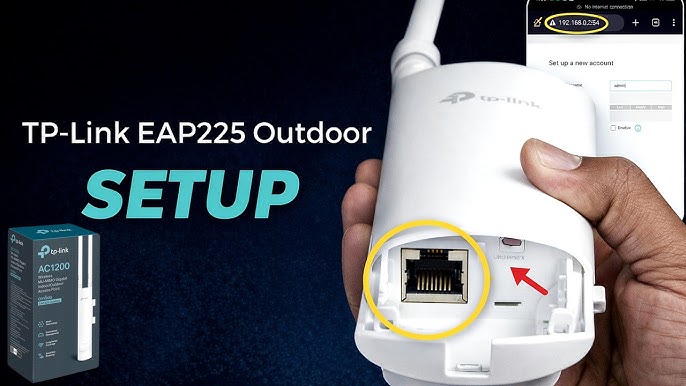
Complete guide to set up, configure, and optimize the TP-Link EAP225-Outdoor for gardens, campuses, and warehouses with step-by-step instructions.
Prerequisites for TP-Link Router Login
Make sure you have these ready before attempting to access your router admin panel.
A TP-Link Router
Any TP-Link model — Archer series, TL-WR series, Deco series, or others.
Connected Device
PC, laptop, phone, or tablet connected via WiFi or Ethernet cable.
Web Browser
Chrome, Firefox, Safari, Edge or any modern web browser will work.
Login Credentials
Default username & password — usually printed on the router label or manual.
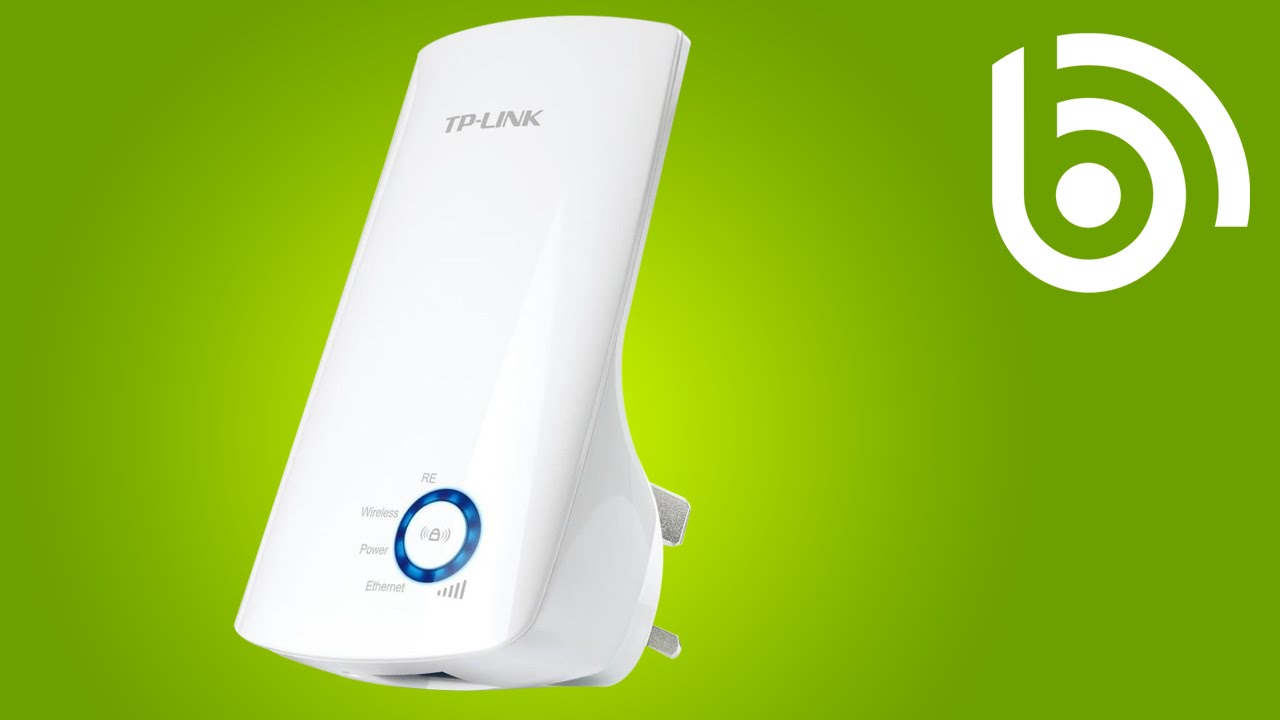
Also read: Setup TP-Link WiFi Extender →
How to Login to TP-Link Router Admin Panel
Follow these 5 steps to successfully access your TP-Link admin panel.
Connect Your Device to TP-Link Network
Connect to TP-Link WiFi or use Ethernet. Wired is recommended for first-time setup.
- Wirelessly — Connect via WiFi SSID and password
- Wired — Plug Ethernet into any LAN port on the router
Open Browser and Enter Router Address
Open any web browser and type one of these addresses:
Enter Login Credentials
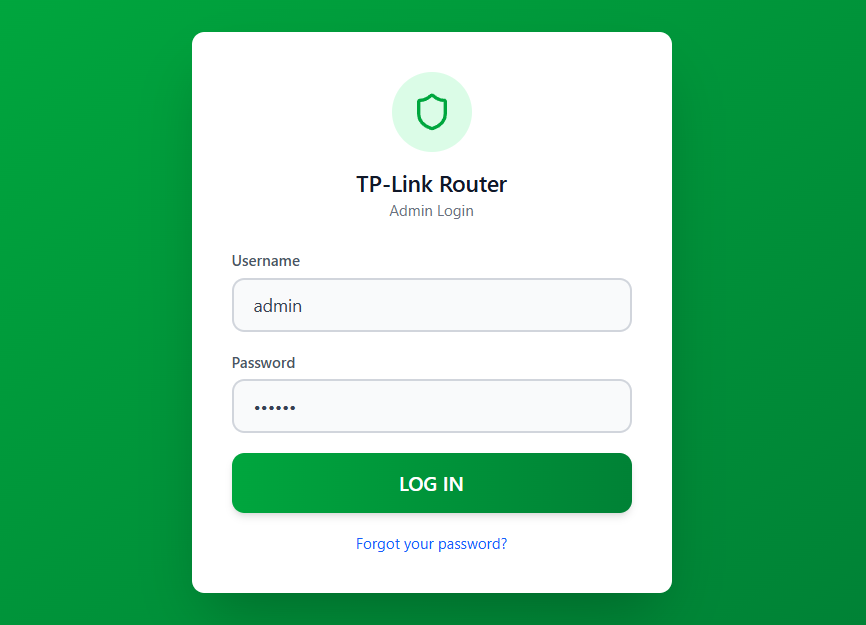
The TP-Link login page will appear. Enter the default credentials:
- Username: admin
- Password: admin (or “password” on some models)
- Newer models may ask you to create a password on first login
Locate Default Credentials (If Needed)
If default credentials don’t work, find them here:
- Router Label — Sticker on bottom or back of router
- User Manual — Documentation in the box
- Router Box — Sometimes printed on packaging
- TP-Link Website — Check their support page for your model
Access TP-Link Admin Dashboard
After successful login, you can manage all router settings:
- Change WiFi name (SSID) and password
- Configure WPA2/WPA3 wireless security
- Manage connected devices and bandwidth
- Set up parental controls and access restrictions
- Configure port forwarding and firewall
- Update router firmware
TP-Link Router Default Passwords by Model
Default credentials for the most popular TP-Link router models.
| Router Model | Default Username | Default Password |
|---|---|---|
| Archer C7 | admin | admin |
| Archer C50 | admin | admin |
| TL-WR841N | admin | admin |
| Archer C6 | admin | admin |
| TL-WR940N | admin | admin |
| Archer A7 | admin | admin |
| Deco M5 | admin | password |
| Archer AX50 | admin | admin |
How to Change TP-Link WiFi Password
Changing your WiFi password is crucial. Default credentials are publicly known — protect your network today.
Log in to the Admin Panel
Use the steps above to access your router at 192.168.0.1 or 192.168.1.1
Navigate to Wireless Settings
Go to Wireless → Wireless Security from the left sidebar menu.
Select Security Type
Choose WPA/WPA2-Personal or WPA2/WPA3-Personal for best security.
Enter New WiFi Password
In the PSK Password field, enter your new password (8–63 characters). Mix uppercase, lowercase, numbers and symbols.
Save Changes and Reconnect
Click Save. Router may reboot automatically. Reconnect all devices with the new password.
How to Change TP-Link Router Admin Password
Securing your admin panel is essential — unauthorized access can change all your router settings.
Access TP-Link Admin Panel
Log in using existing credentials at 192.168.1.1 or 192.168.0.1
Navigate to Management Settings
Go to System Tools → Administration or Management → Access Control → Password
Enter Current and New Password
Type your current admin password, then enter your new password twice to verify.
Save and Apply Changes
Click Save or Apply. You’ll be logged out — log in again with the new password.
Troubleshooting TP-Link Router Login Issues
Click on any issue below to see the solution.
- Make sure you’re connected to the router’s WiFi or via Ethernet cable
- Try http://tplinkwifi.net instead of the IP address
- Clear browser cache and cookies, or try a different browser
- Disable VPN or proxy if you’re using one
- Run ipconfig (Windows) or ifconfig (Mac) to check Default Gateway
- First try default credentials: username admin / password admin
- Check the router label sticker for original credentials
- If changed and forgotten, you must factory reset the router
- To reset: Hold the reset button for 10–15 seconds while the router is powered on
- Check that the router is powered on and all indicator lights are working
- Switch from WiFi to a wired Ethernet connection
- Restart the router by unplugging it for 30 seconds
- Check if router’s IP address has been changed in settings
- Ensure Caps Lock is off — credentials are case-sensitive
- Try “password” instead of “admin” for the password field
- Check if someone previously changed the admin password
- Factory reset the router as a last resort
Frequently Asked Questions
The most common default IPs are 192.168.0.1 and 192.168.1.1. You can also access via tplinkwifi.net.
On Windows: open Command Prompt → type ipconfig → look for “Default Gateway”. On Mac: System Preferences → Network → Advanced → TCP/IP → Router address.
Yes, some models support remote management via TP-Link ID or Cloud service. Enable this in management settings. Direct IP access only works on the local network for security reasons.
Log in to the admin panel using admin credentials → go to Wireless Settings to view or change the password. If you’ve forgotten both, you’ll need to factory reset the router.
Check for updates every 3–6 months. Updates provide security patches, bug fixes, and performance improvements. Go to System Tools → Firmware Upgrade in your admin panel.
Yes — factory reset is safe and often necessary for troubleshooting. However, you’ll lose all custom settings (WiFi name, password, etc.). Backup settings first if your model supports it.
🛡️ TP-Link Router Security Best Practices
Follow these tips to keep your home network secure from unauthorized access.
Change Default Credentials
Use strong, unique passwords for both WiFi and admin access immediately.
Enable WPA3 Encryption
Use the latest security protocol for maximum network protection.
Disable WPS
WiFi Protected Setup can be a vulnerability — disable it in settings.
Keep Firmware Updated
Regular firmware updates patch security vulnerabilities and bugs.
Disable Remote Management
Unless needed, turn off external access to your admin panel.
Enable Guest Network
Keep visitors separate from your main network for added security.
Monitor Connected Devices
Regularly check for unknown or unauthorized devices on your network.
Ready to Access Your Router?
Accessing your TP-Link router admin panel is simple with the right steps. Whether logging in via 192.168.1.1, 192.168.0.1, or tplinkwifi.net, this guide covers everything — login, password changes, troubleshooting, and security best practices. Keep firmware updated and use strong, unique passwords at all times.